The Main Campus faculty accounts have been migrated to SSO. Please follow the steps below to test your Blackboard SSO login.
Important: Clear your browser cache first!
Before you log in, please clear your browser's cache and cookies. This step prevents conflicts with your old Blackboard login. Old login data can cause errors or login loops. Clearing your cache helps avoid these problems.
If you need help clearing your cache, your browser's help page has simple instructions: https://www.refreshyourcache.com/en/home/
Browser
We do at times see problems with the Safari browser. If you run into any issues, please switch to Google Chrome or Firefox and retry your login.
How to log in with SSO:
- If you haven't done so, please clear your browser's cache.
- Go to the Blackboard login page:
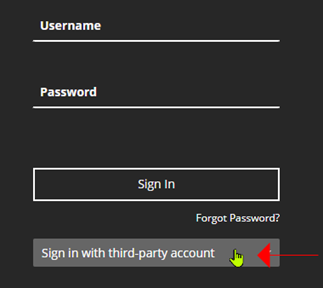
- Click Sign in with third-party account.
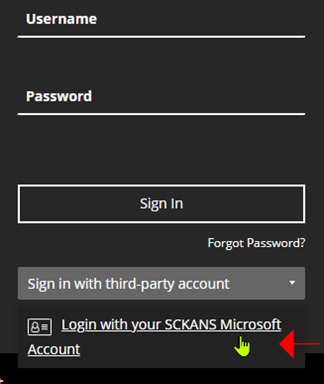
- Click Login with your SCKANS Microsoft Account from the menu that appears.
- Since you have just cleared your browser's cache, you will be prompted to login to your SCKANS Microsoft account.
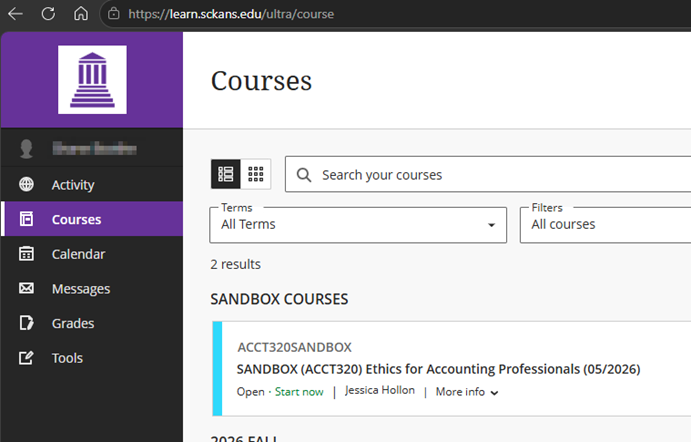
- After a few seconds, you should see your Blackboard home page.
Was this article helpful?
That’s Great!
Thank you for your feedback
Sorry! We couldn't be helpful
Thank you for your feedback
Feedback sent
We appreciate your effort and will try to fix the article