Prior to resetting their password, direct user to password.sckans.edu to attempt resetting from O365 website.
If user cannot reset through link above:
1. Complete the Verifying User process before starting.
2. Navigate to admin.microsoft.com (365 admin is on the favorite bar ) from SC Helpdesk account.
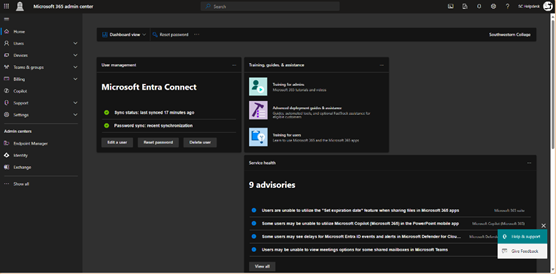
3. Click Users > Active Users in the sidebar
4. Find user (firstname.lastname)
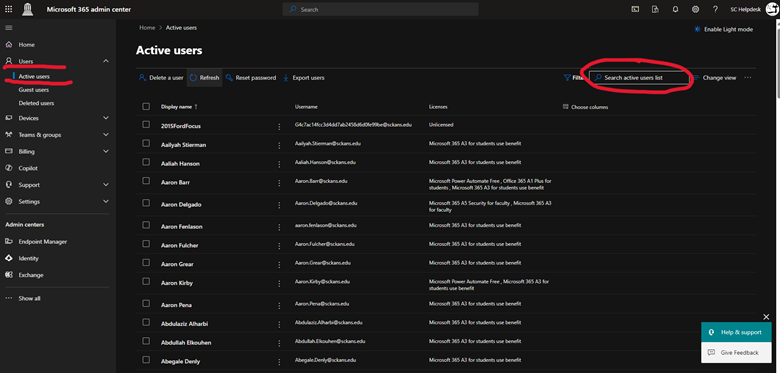
5. Select the user’s account and click on ‘Reset Password’ on the user information pane.
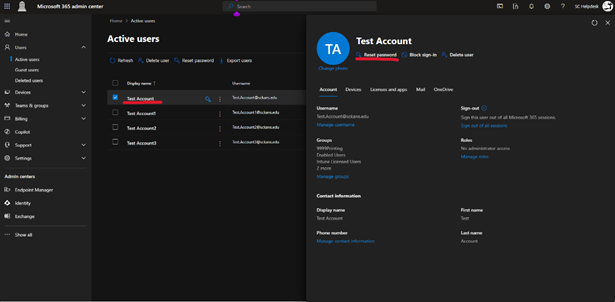
6. Select “Automatically create a password”, “Require this user to change their password when they first sign in.
7. After resetting the password, email the user their credentials with the new temporary password and assist them if needed.
If they still can’t change their password use the following process down below.
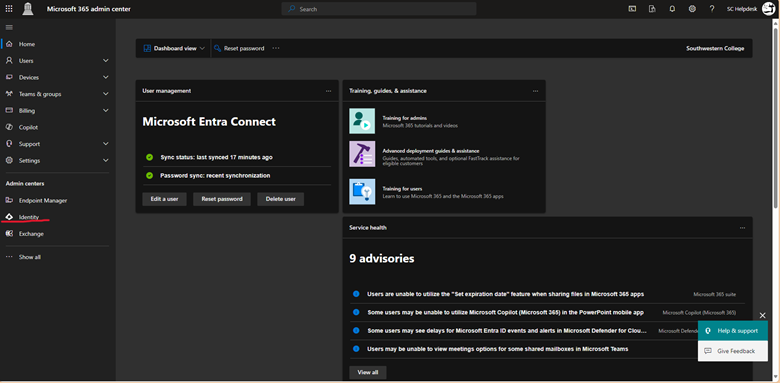
- Navigate to admin.microsoft.com (365 admin is on the favorite bar ) from SC Helpdesk account and select Identity. If it asks for verification and if Trevor is not there, select I can’t use authenticator and call the helpdesk phone for verifcation. The last 2 digts is 44. Once you receive the phone call answer and press “#” and wait for the phone to hang up.
- Click Users > Active Users in the sidebar
- Find user (firstname.lastname)
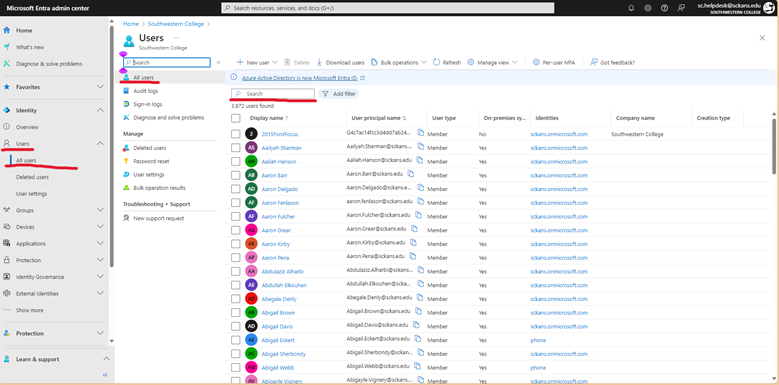
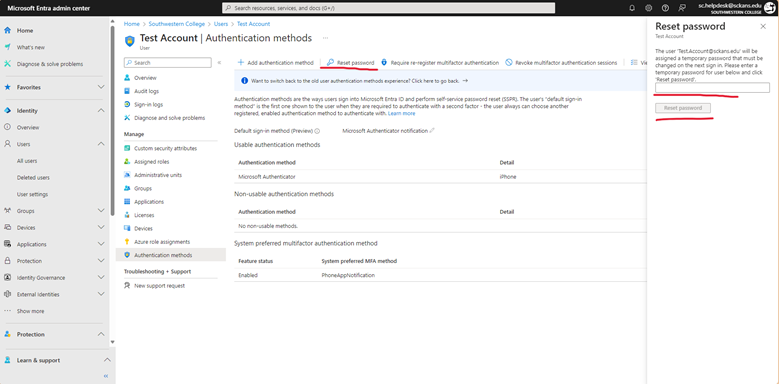
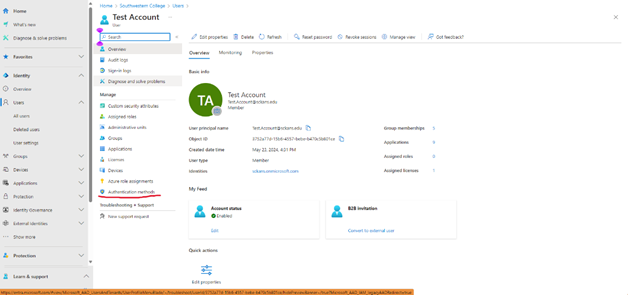
- Go to Authentication methods >> Reset password >> Enter temporary password Jinx2026!
- Email user their credentials use preset response below:
We have reset your Office 365 email. Please use the following credentials.
User: Your first.lastname@sckans.edu
Password: Jinx2026!
Authentication Reset
Down below are instructions
Authentication Reset
- Verify user Identity
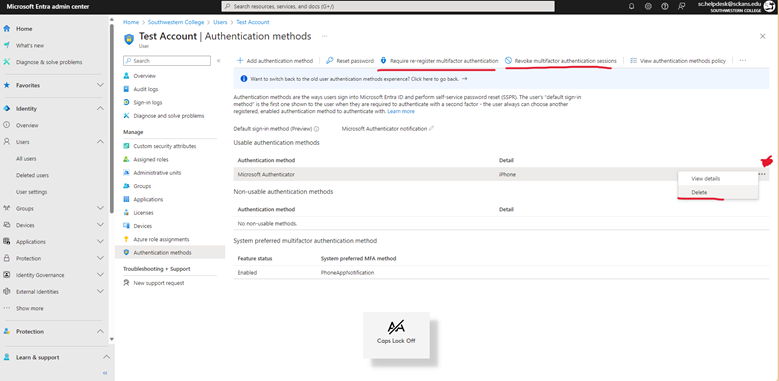
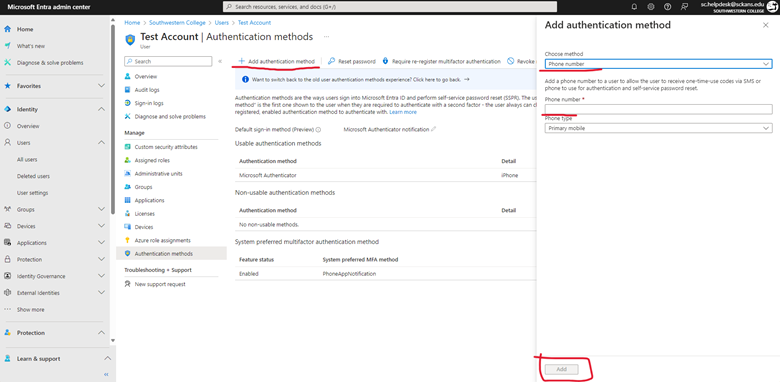
- Go to Identity and find the user >> go to Authentication method >> delete the authentication methods that are shown. Click the three dots and delete
- Once deleted >> Click “Revoke Multifactor authentication sessions” >> Then Click “Require re-register multifactor authentication” >> then add their phone under add authentication method ( see image on next page )
- Once the verification is done and reset tell the user this:
We have reset the MFA information for your account. You should be prompted to register new security methods next time you sign into Office 365
Please let us know if you need any further assistance! ☺
Was this article helpful?
That’s Great!
Thank you for your feedback
Sorry! We couldn't be helpful
Thank you for your feedback
Feedback sent
We appreciate your effort and will try to fix the article